Prerequisites: Must have an account created in both Mail Ward and Omnisend
Omnisend plan requirement: Webhook actions inside Omnisend automations are only available on Omnisend's paid plans. You can still connect your account on a free plan, but you won't be able to add the webhook action until you upgrade.
How Mail Ward's Omnisend Integration Works
The core value of pairing Mail Ward with Omnisend is twofold: you get enriched deliverability data on every contact Mail Ward screens, and you can automatically unsubscribe contacts whose deliverability score falls below your threshold, before they ever affect a send.
Data that is received from Omnisend is the email address but this is never stored in Mail Ward. Mail Ward will send a
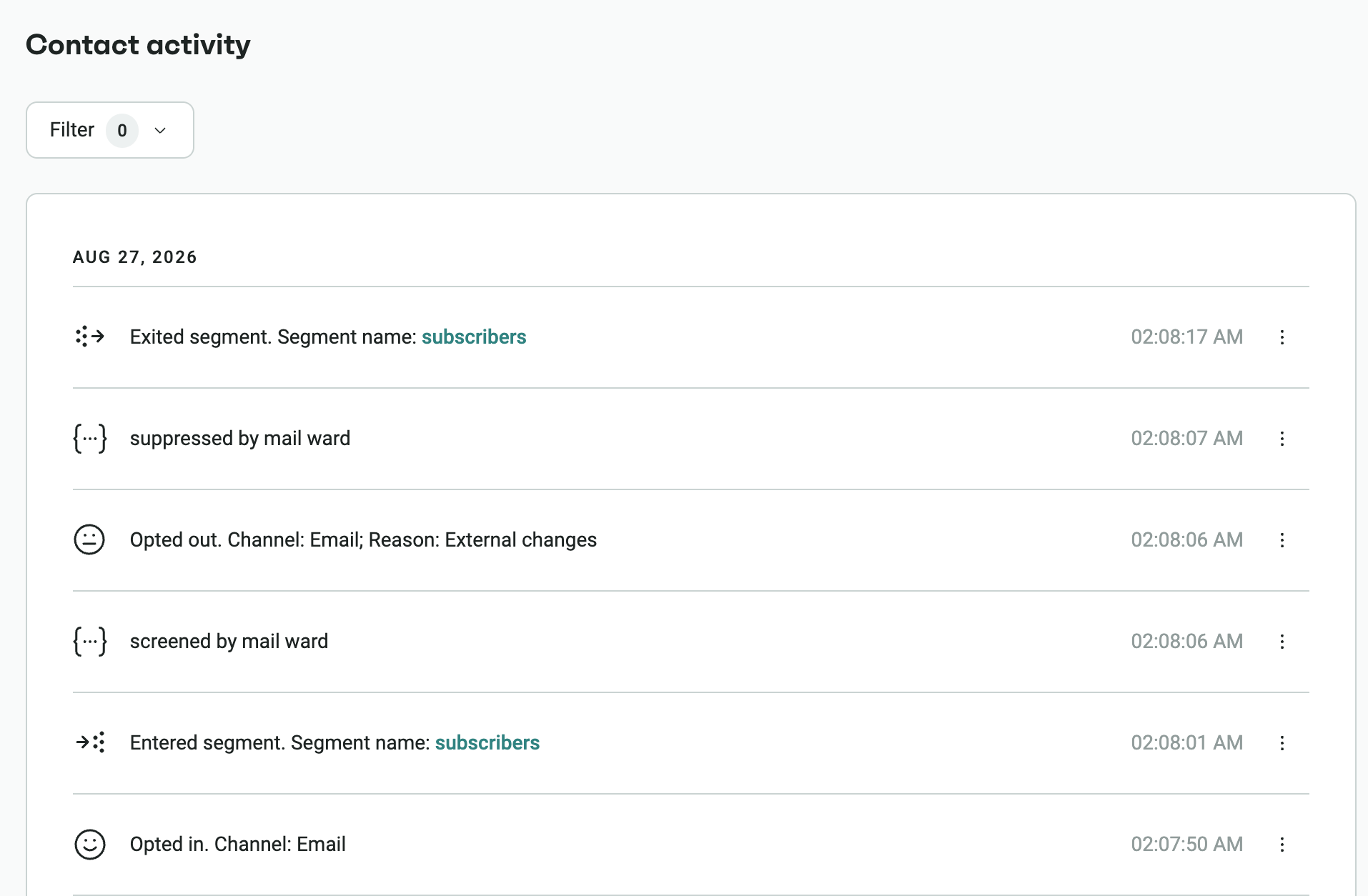
screened by mail ward
event for every contact that gets received from Omnisend and this includes information about the email address received. Mail Ward will also send a
suppressed by mail ward
event if this is enabled in the preferences.
In Omnisend you have the ability to then segment contacts or trigger further automations as well as create dynamic email content with the data from Mail Ward.
How Syncing Data Works Between Omnisend and Mail Ward
We use the webhook action inside your Omnisend automations to receive email addresses in real time. Our system then processes each email address with our internal validation tool and writes the results straight back to Omnisend as custom events, with no delays, ensuring your automations remain responsive and efficient.
Connecting Mail Ward to Omnisend
1
Within the Mail Ward dashboard, select
Add account
and choose
Omnisend from the integration picker
2
Authorize Mail Ward in Omnisend. You'll be returned to your dashboard with the account connected.
3
In Omnisend, add a Webhook action to your chosen automation at the point where contacts should be screened.
4
Copy the destination URL, header and body from Mail Ward into that webhook action, then publish your changes in Omnisend.
5
Back in Mail Ward, select the automation and let Mail Ward verify the webhook is configured correctly.
6
Visit the Preferences section to decide how screened contacts are handled.
Adding the Webhook Action in Omnisend
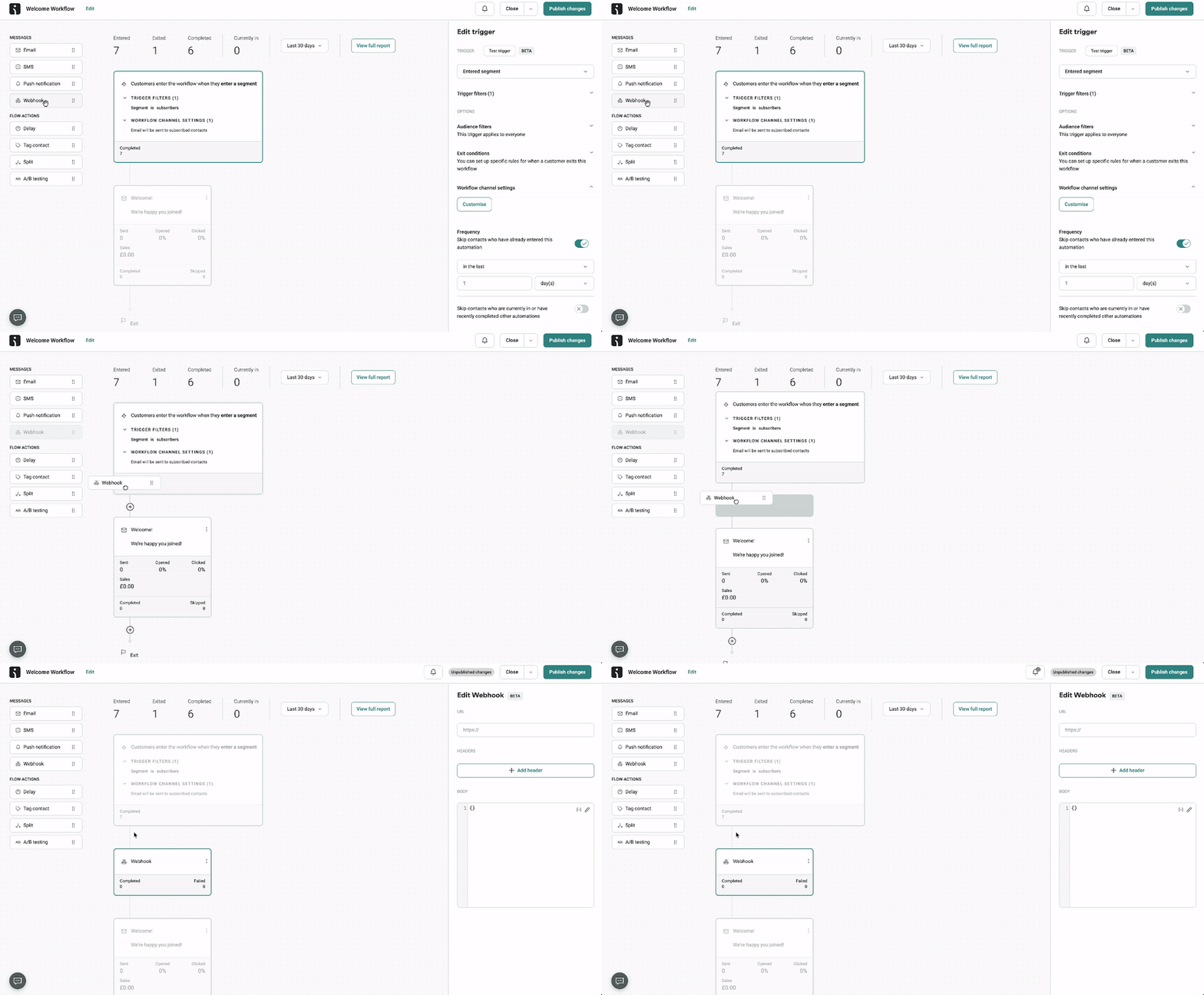
Open the automation you want to screen contacts in, then drag the Webhook block from Flow actions in the left sidebar into your workflow. Place it at the point where contacts should be screened — usually immediately after the trigger, so invalid addresses are caught before any email is sent.
Use the Webhook block under Flow actions, not the greyed-out Webhook entry under Messages.
Copying Your Mail Ward Values into Omnisend
Omnisend will not let you publish an empty webhook action. You need to fill in the fields yourself before the automation can be saved. Paste the destination URL first — Omnisend requires a valid URL before it will accept the block — then add the header and body.
Step 2 of the setup wizard in your Mail Ward dashboard shows each value with a copy button. Copy them across one at a time:
| Field | Value |
|---|
| Destination URL | Shown in your dashboard. Paste this first. |
| Header key | X-User-ID |
| Header value | Your connection ID, shown in your dashboard. This is unique to each connected Omnisend account. |
| Body | {
"email": "[[contact.email]]"
} |
If you connect more than one Omnisend account, each has its own header value. Copy the value from the account you're currently working on. When you're done, click Publish changes in Omnisend to save the automation.
Verifying the Webhook in Mail Ward
Back in Mail Ward, select the automation you just edited. Mail Ward reads its webhook actions and checks two things for each one: that the destination URL points at Mail Ward, and that the X-User-ID header matches your connection.
URL correct
Header correct
If everything checks out you're finished — contacts entering that automation will now be screened in real time.
If a webhook action is flagged as incorrect, you have two options: fix it in Omnisend using the values from the previous step, or let Mail Ward apply the settings for you. Because Omnisend does not allow an active automation to be edited directly, choosing the second option means Mail Ward briefly pauses the automation, applies the configuration, and re-enables it:
Pausing automation…
Configuring webhook…
Re-enabling automation…
Contacts already in the workflow stay in it while Mail Ward makes this change, and an automation that was already paused beforehand is left paused — Mail Ward never activates an automation you had intentionally turned off.
Understanding Your Mail Ward Data
Mail Ward sends two custom events to Omnisend:
screened by mail ward
suppressed by mail ward
Both appear on the contact's profile in Omnisend and are available as segment conditions and automation triggers, so you can build audiences and workflows from Mail Ward's results the same way you would with any native Omnisend event.
Screened by Mail Ward
This event is tracked whenever an email address is screened through Mail Ward. The event includes deliverability and quality insights about the address so you can use this data to automatically unsubscribe risky or invalid contacts, or personalize your sending strategy based on deliverability health.
You can filter and target screened by mail ward events based on the following properties:
| Property | Description |
|---|
| Score | A numeric quality score (0 to 100) representing how likely the address is to be valid and receive emails successfully. |
| Deliverability Status | The result of Mail Ward's verification for this address. Possible values include deliverable, undeliverable, or risky. |
| Auto Suppressed | Indicates whether the contact was automatically unsubscribed after screening. |
| Suspected Role Domain | Indicates whether the address is a group or role-based address (e.g., support@, admin@). |
| Disposable Domain | Indicates if the email comes from a temporary or disposable email provider. |
| Free Domain | Shows whether the email uses a free email service provider (e.g., Gmail, Yahoo, Outlook). |
| Mailbox Full | Identifies if the mailbox was reported as full, which may cause temporary bounces. |
| No Reply Address | Flags addresses that appear to be "no-reply" inboxes, which typically shouldn't receive messages. |
| Domain | The domain portion of the email address. |
| Reason | Provides a short description explaining the screening outcome. |
| Email | The full email address that was screened. |
Suppressed by Mail Ward
This event is triggered when a contact is automatically unsubscribed by Mail Ward because their email quality score does not meet the minimum threshold set in your suppression preferences. The event includes details about why the suppression occurred and when the request was sent to Omnisend. You can use this data to track suppression activity, audit deliverability decisions, or trigger workflows when a contact becomes suppressed.
You can filter and target suppressed by mail ward events based on the following properties:
| Property | Description |
|---|
| Suppression Reason | The reason the contact was suppressed, typically based on the deliverability status or validation result. |
| Score | The email's quality score (0 to 100) at the time of suppression. |
| Suppression Request Timestamp | The date and time Mail Ward sent the suppression request to Omnisend. |
In Omnisend, suppression means the contact's email channel is set to Unsubscribed. They stay in your contact list with their full history intact, but are excluded from campaigns and automations.
What You Can Do in Omnisend with Mail Ward Data
Create High Quality Segments Based on Scores
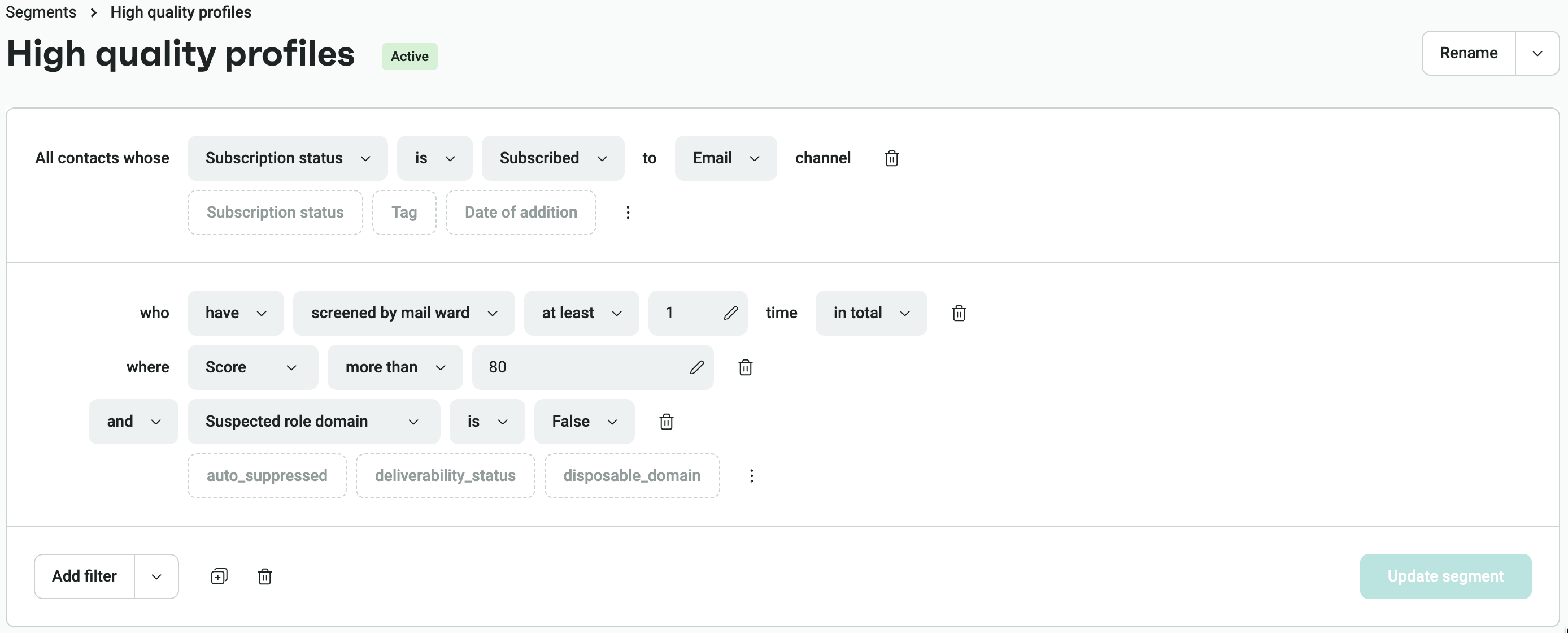
Use the Score property to build segments that target only your most deliverable contacts. The example below combines three conditions: contacts subscribed to the email channel, who have been screened by Mail Ward at least once, where the score is above 80 and the address is not a suspected role domain.
You can invert the same idea to exclude lower-scoring contacts from campaigns and reduce bounces, or add Deliverability Status and Disposable Domain conditions for tighter control.
Send Email Confirmation Messages
For addresses that fall into a "risky" score range, you can trigger an automated email confirmation or double opt-in workflow. This allows those contacts to verify their address and move back into your engaged audience if valid, while keeping your main list clean and compliant.
Monitor Deliverability Health
Track changes in deliverability trends by analyzing your Mail Ward events. This helps you understand how many contacts are being screened, what percentage are risky or undeliverable, and how your suppression thresholds affect list quality. Your Mail Ward dashboard also reports screening and suppression volumes across every connected account.
Automate Suppression Management
Use Mail Ward's suppression data to automatically manage who can receive emails from your Omnisend account. Contacts that no longer meet your quality standards are unsubscribed in real time, preventing accidental sends to undeliverable addresses and protecting your sending reputation.
Personalize Communication Based on Deliverability Risk
Adjust messaging for lower-score contacts, such as using lighter-weight transactional templates or alternative channels like SMS, to maintain engagement while minimizing bounce risk.
Need help getting started? Connect your Omnisend account from your dashboard.
Go to Dashboard